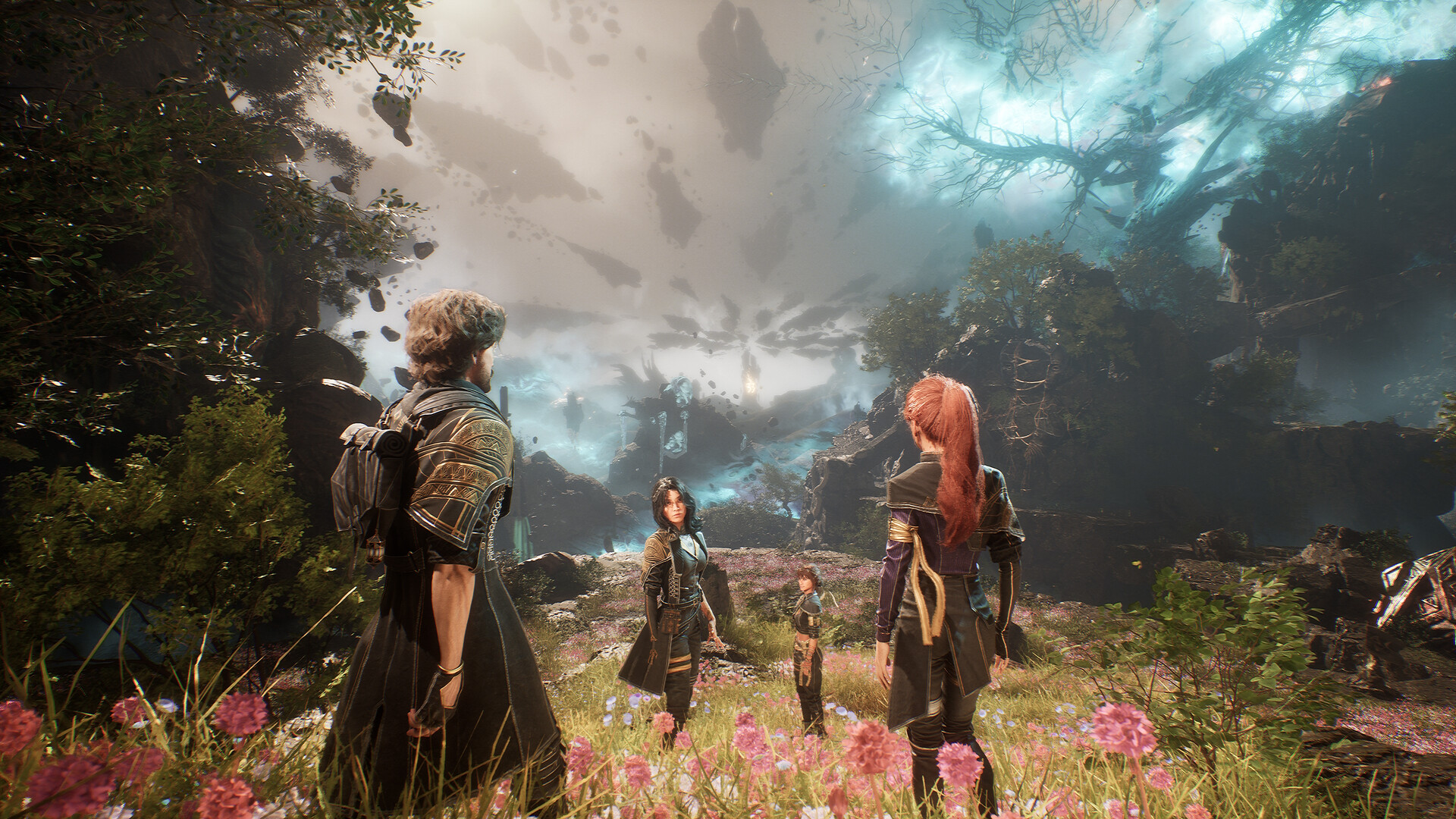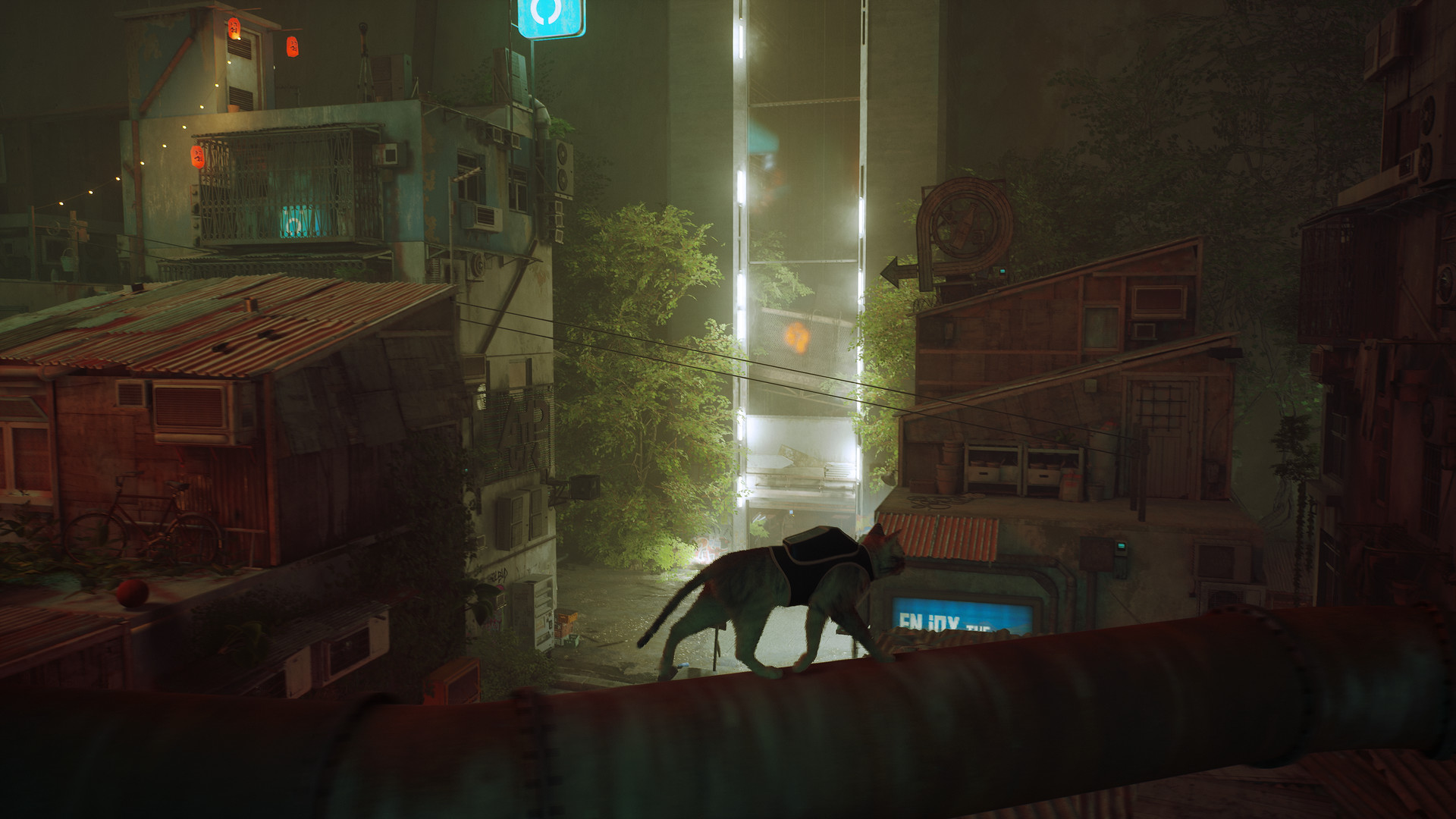
Watch the camera, not the action
A trailer cuts between carefully selected shots, so it can hide the camera behavior you will see every minute. Choose several uninterrupted minutes of normal gameplay instead. First-person footage is especially useful, but third-person games can also include abrupt recentering, close cameras, strong shake, or repeated zoom effects.
Ignore whether the player is skilled and track the frame itself. Does it bob while walking, sway while aiming, blur during turns, shake after every impact, or move toward points of interest without the player asking? Note the specific behavior rather than deciding only that the footage feels busy.
Check the settings that match the problem
Open the game's official accessibility information or watch someone show its display, camera, and accessibility menus. Microsoft’s camera-comfort criteria call out adjustable camera speed and the ability to turn off or reduce screen shake, bobbing, motion blur, arm sway, and forced narrative camera movement.
- Camera shake or screen effects: look for an off setting, not only a small reduction.
- Head bob, weapon sway, and motion blur: check whether each effect is separate.
- Camera sensitivity: confirm that horizontal and vertical movement can be slowed.
- Field of view: look for an adjustable range and test what feels comfortable at your viewing distance.
- Viewpoint and recentering: check for first-person or third-person choice and an option to disable automatic camera movement.
Do not assume one field-of-view setting fits everyone
Field of view changes how much of the world appears on screen and how movement is presented. The useful setting depends on the game, screen, viewing distance, and player, so a recommendation copied from someone else is only a starting point. Prefer a game that lets you adjust the value while looking at live gameplay.
Change one camera setting at a time. If you alter field of view, sensitivity, blur, and shake together, you will not know which adjustment helped or whether one change made the experience worse.
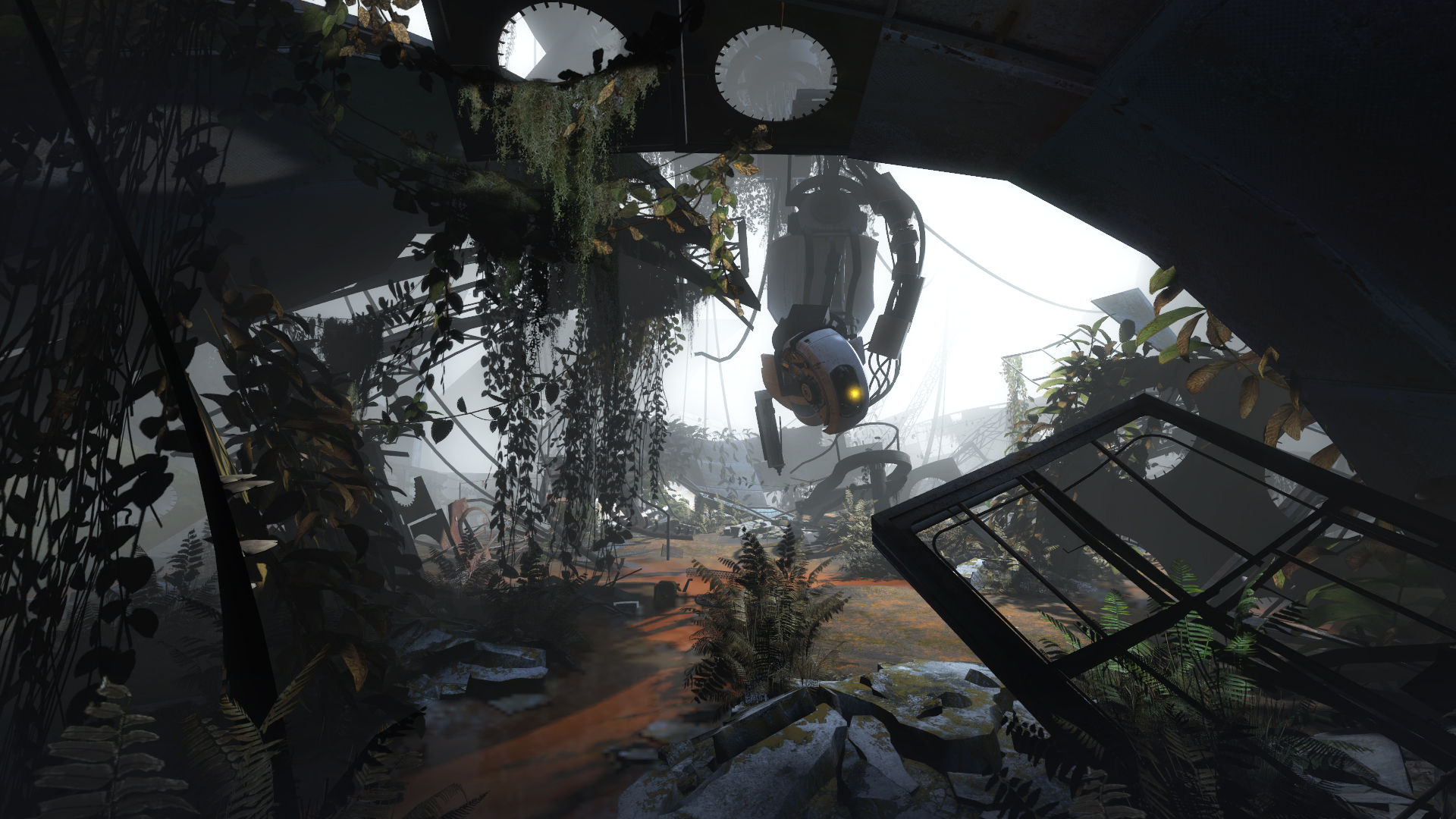 Portal 2
A first-person view changes what you need to assess. Watch the camera and inspect the current settings rather than judging comfort from a still image.
Official screenshots: Portal 2Use accessibility labels as a shortlist, then verify
A camera-comfort accessibility tag is useful because it points to games whose camera effects are absent or adjustable. It is not a personal guarantee. Microsoft’s criteria require relevant effects to be switchable and player-controlled camera movement to be reducible, but individual comfort still varies.
Check the current version and the mode you plan to play. A setting shown in a main menu may behave differently during a vehicle sequence, special effect, cutscene, or separate multiplayer mode.
Start with a short, reversible test
Before planning a long session, test the opening or a representative section with your chosen settings. Keep the first attempt short, avoid changing several variables at once, and stop if the experience becomes uncomfortable. This is a selection method, not medical advice.
If the footage already contains an unavoidable trigger for you, or the settings are unclear, mark the game as uncertain and choose another candidate. A good game for tonight is one you can comfortably evaluate without having to push through the warning signs.